A GLB opens in the preview, but the receiving artist reports missing UVs. Another file fails before the model appears. These are different problems, and they need different fixes.
Validate a game asset in three steps: check the GLB’s file structure, compare its contents with your production brief, then test the asset in the target engine. Start with the first failed check and keep its report attached to the exact source revision.
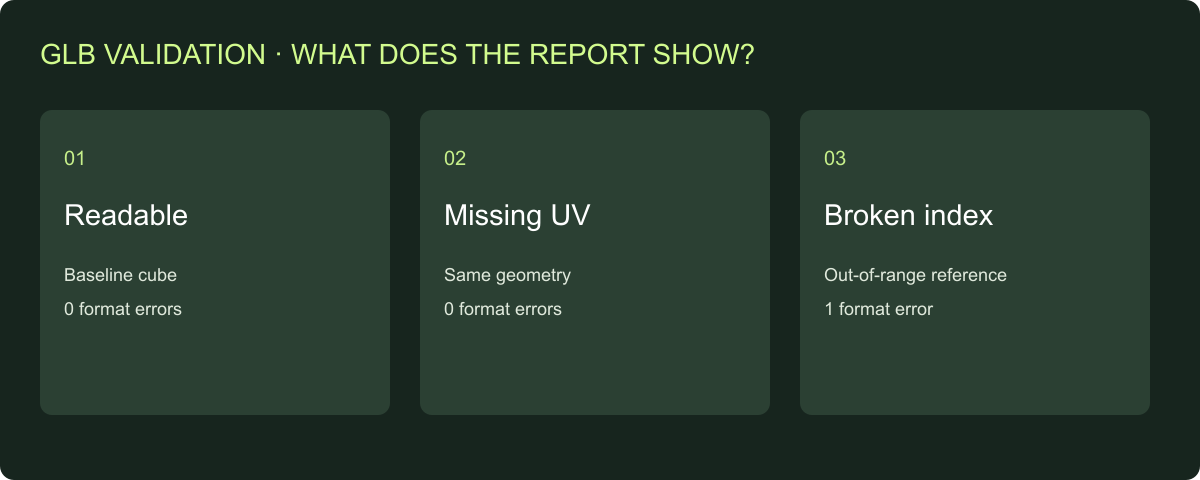
This guide includes three small GLB files you can download and inspect yourself. We reran the checks on October 19, 2026: the normal cube and a version without primary UVs both returned zero format errors, while a corrupted vertex index produced one error. That contrast explains why “valid file” and “accepted game asset” are separate decisions.
Start with the result you need
If you only want to know why a file will not open, use a format validator first. If the file opens but a texture, material or animation behaves incorrectly, inspect the relevant source data and the receiving application’s settings. If you are accepting an outsourced asset, you need the source files, production requirements and engine review together.
| Your immediate problem | First action | Evidence to retain |
|---|---|---|
| GLB fails to load | Run the format validator and read the first error | Original file, issue code and JSON report |
| Model opens without the expected texture | Check UV attributes, texture references and material assignment | Material inventory and affected primitive |
| File passes, but misses the brief | Compare decoded data with the required asset specification | Requirement, observed value and correction request |
| Asset behaves incorrectly after import | Reproduce in the intended engine and importer version | Settings, test scene and observed behavior |
The Khronos glTF Validator provides a browser-based drag-and-drop check. Its official repository describes validation against glTF 2.0 and JSON reports containing issues and asset statistics.[1] For a complete delivery review, keep the game-ready asset checklist beside the report.
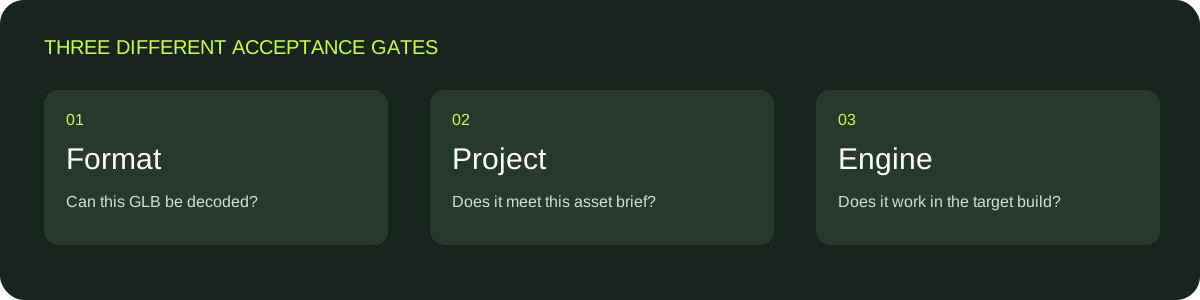
Move from file integrity to production requirements to engine behavior. Each gate answers a different question.
Run a GLB check without writing code
Save a copy of your original export before making corrections. Open the official validator, select the file and inspect errors first. Record the issue code and the referenced object or accessor. Keep warnings, information and hints in the report as well: they help explain the export even when they do not block loading.
Use these steps for a useful first review:
- Record the asset name and source revision.
- Validate the original GLB and save its JSON report.
- Read each error’s code and location before changing export settings.
- Ask the source artist to correct the relevant geometry, reference or attribute.
- Export a new revision and run the same check again.
- Compare the result with the production brief and continue to engine review.
Changing a file extension does not repair its contents. Likewise, reopening and resaving through another application can change the evidence. Keep both versions and identify which export resolved the issue.
For batch checking, download our small Node validation script. Install gltf-validator@2.0.0-dev.3.10, then run node validate-glb.mjs baseline.glb missing-uv.glb invalid-index.glb. The script writes a JSON report per input; the deliberately corrupted sample returns a failing exit status.
Try the three downloadable files
The experiment uses one solid-color cube with 24 authored vertices, 12 triangles and one reachable mesh primitive. The first file includes normals, primary UVs and one material. The second removes only the primary UV attribute. The third changes one index to reference vertex 999, beyond the available vertices.
- Baseline cube: readable geometry with primary UVs.
- Cube with UV0 removed: same geometry, without
TEXCOORD_0. - Cube with an invalid index: deliberately broken geometry reference.
- Experiment record: tool versions, SHA-256 file hashes and observed results.
The sample isolates file and attribute checks. For production acceptance, use your actual asset’s texture, lighting, rig and interaction requirements.
| File | Format errors | Warnings | Information / hints | Rendora inspection |
|---|---|---|---|---|
| Baseline | 0 | 0 | 1 / 4 | UV0 found; lightmap UV attribute flagged |
| UV0 removed | 0 | 0 | 0 / 3 | Primary and lightmap UV attributes flagged |
| Invalid index | 1 | 0 | 1 / 4 | Rejected with INVALID_GLB_INDEX |
The official validator reports ACCESSOR_INDEX_OOB for the corrupted file. The other messages include buffer-view target hints and, in the baseline, an unused UV attribute. The full reports show the exact locations: baseline, missing UV and invalid index.
The baseline’s primary UV attribute is unused by its solid-color material. Removing that attribute therefore leaves a format-valid file. A production brief requiring primary UVs still needs the missing data corrected. The glTF specification defines attributes and references; the project brief defines what this asset must contain.[2]
Why the same preview can hide different data

Baseline: primary UVs are present on the inspected primitive.

UV0 removed: the geometry stays the same, so the geometry-only projection stays the same.
A silhouette view is useful for shape review. To review texture alignment, inspect a textured result and its UV data. To review deformation, exercise the rig. Match each piece of evidence to the question you are deciding.
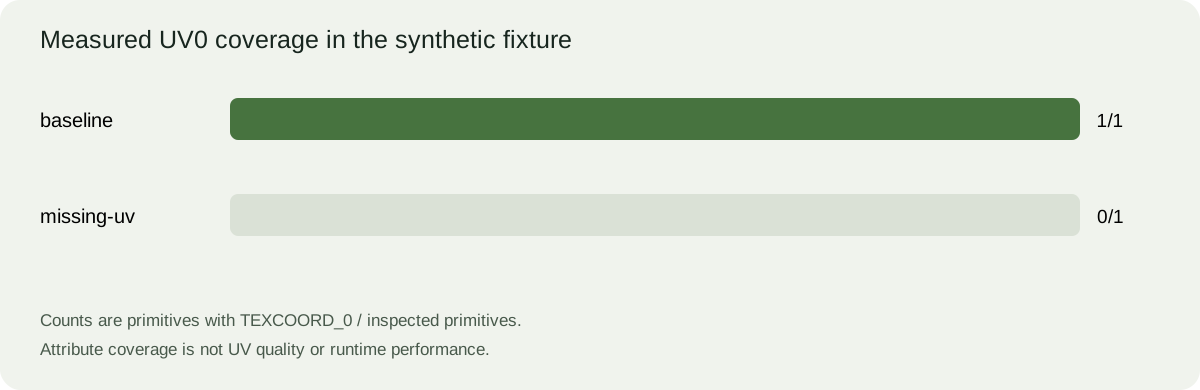
Attribute coverage counts primitives containing UV0. Review overlap, scale and texture alignment separately.
In this experiment, Rendora’s static-prop assessment also flags the absent second UV attribute in both readable files. Resolve that result against your lighting workflow. Unity documents both supplying and generating lightmap UVs; if your project generates them on import, review that imported result.[3] Record the decision so the next reviewer understands why a source attribute was repaired or handled during import.
Turn a report into a correction request
“The validator failed” leaves the artist guessing. A useful request names the file, revision, issue location, expected result and retest.
| Finding | Correction request | Retest |
|---|---|---|
| Index points outside available vertices | Repair the affected primitive and re-export | Original error disappears; geometry remains complete |
| Required primary UVs absent | Supply the intended UV set on the affected surfaces | Attribute is readable and texture alignment is reviewed |
| Material slot points to the wrong material | Correct the assignment in the source | Slot inventory and visible surface agree |
| Source lacks a lightmap UV set | Follow the project’s supplied/generated UV policy | Imported lighting setup is reviewed |
Download the validation review register to record the finding, owner, corrected revision and decision. A SHA-256 hash links a report to exact file bytes; retain it alongside the human-readable revision name.
Our experiment record includes the hash of the model-evidence implementation used for the local checks. This lets a technical reviewer distinguish a file change from a checker change. On your own project, also retain export settings when those settings affect the result.
Package the source and the decision together
Give the receiving team a clear inventory: master model, runtime derivatives, collision source, texture set, reports and an import note. Each report should name the files it inspected. Each open issue should have a next action and an owner.
For a static prop, the import note should identify the engine version, importer route, intended scale, pivot, material setup, LOD assignment and collision test. For a character, add deformation, clips and root motion requirements. The delivery checklist expands this into a practical acceptance sequence.
Unreal’s FBX static-mesh documentation describes collision and socket conventions for that import route.[4] If your handoff uses GLB, record the actual GLB importer and attachment setup rather than assuming the FBX naming behavior carries over.
Use Rendora for the multi-file handoff
The Rendora game asset tool lets you set the asset type, target engine and platform, and triangle/texture budgets. Supply a GLB master, LOD0/1/2, a collider and the required PBR maps. It inspects model evidence and organizes the supplied files with a technical report and import manifest.
Prepare LOD reduction and texture baking in your chosen production application, then bring those outputs into the handoff. FBX can be retained as rig or animation reference; the production master and LOD/collider inputs use GLB. Finish the receiving-engine check against the target project before accepting the runtime asset.
FAQs
Why does a GLB with missing UVs return zero format errors?
A solid-color asset can be valid without UV0. In our sample, the removed UV attribute was not used by a texture. A texture-dependent production requirement is a separate check.
Which result should I fix first?
Start with broken references or unreadable geometry. Then repair missing production data and review the imported result. This order avoids tuning materials on a source that still needs structural repair.
Can I validate a GLB locally?
Yes. Khronos provides a browser validator and a Node package. The downloadable fixtures and reports let you compare your setup with the recorded results.[1]
How do I know whether a repair worked?
Retest the corrected revision with the same checks, confirm the original issue is resolved and inspect the affected appearance or behavior. Keep the new report and source hash with the correction record.
References
[1] Khronos glTF Validator: format validation, browser tool and JSON reports.
[2] glTF 2.0 specification: mesh attributes, accessors and references.
[3] Unity 6.0: Generate lightmap UVs.
[4] Epic Games: FBX Static Mesh Pipeline.
About the author
Rendora Journal covers configurable assets, production checks and traceable delivery workflows.