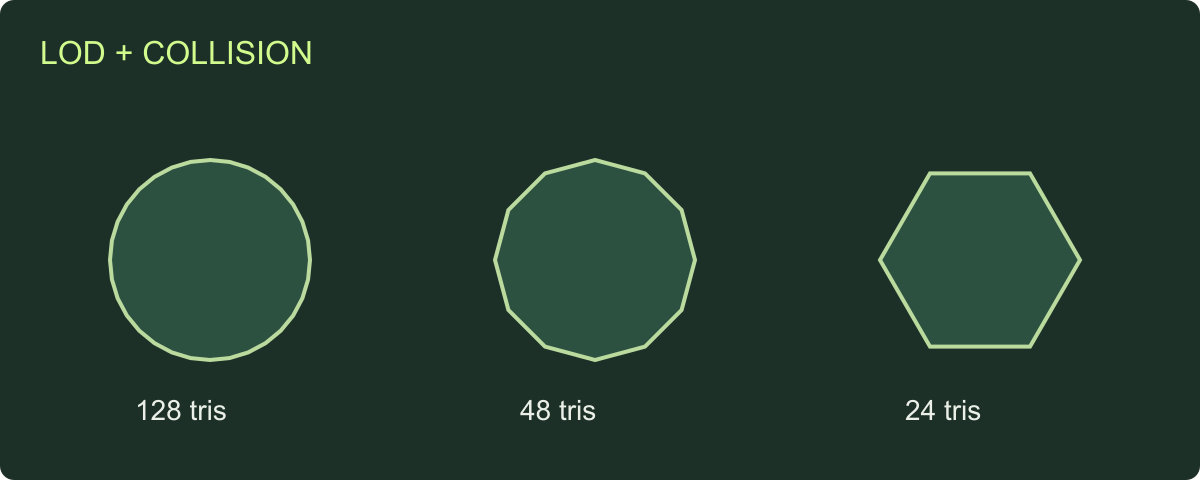
The triangle count drops at every LOD, but the object jumps when the camera moves. The collider exists, yet the player cannot walk through an opening. Checking the file inventory catches neither problem on its own.
Review LODs for visual continuity and collision meshes for the intended interaction. Confirm the supplied files and their budgets first, then inspect alignment, silhouette, materials, transitions and behavior in the receiving project.
Use the LOD and collision review sheet to keep those decisions separate. A useful record names the asset revision, derivative, observed issue and retest.
Check that all derivatives represent the same source
Confirm the master and each LOD belong to the same approved revision. Compare their dimensions, orientation, origin and required components. A lower-detail mesh exported before a handle was added can be within budget while representing an older design.
Make a readable inventory before import:
| Role | File check | Visual or behavior check |
|---|---|---|
| LOD0 | Readable geometry and recorded triangle count | Intended close-view shape and surfaces |
| LOD1 | Same source identity and declared budget | Features remain appropriate at its viewing size |
| LOD2 | Same transform and declared budget | Distant silhouette remains recognizable |
| Collider | Named source and revision | Required blocking, openings or contact behavior |
Keep appearance choices separate from LOD roles. A red and blue barrel are options; LOD0 and LOD1 are different runtime representations of the selected barrel.
Inspect the downloadable geometry study
We authored a simple cylinder at three radial resolutions and a separate box collider. Each cylinder uses the same radius, height and origin. The fixture makes silhouette changes easy to inspect without requiring a complex art asset.
| Supplied study file | Radial segments | Measured triangles |
|---|---|---|
| LOD0 | 32 | 128 |
| LOD1 | 12 | 48 |
| LOD2 | 6 | 24 |
| Box collider | — | 12 |
Download LOD0, LOD1, LOD2 and the collider. The inspection record stores byte counts, hashes and triangle counts read from the files.
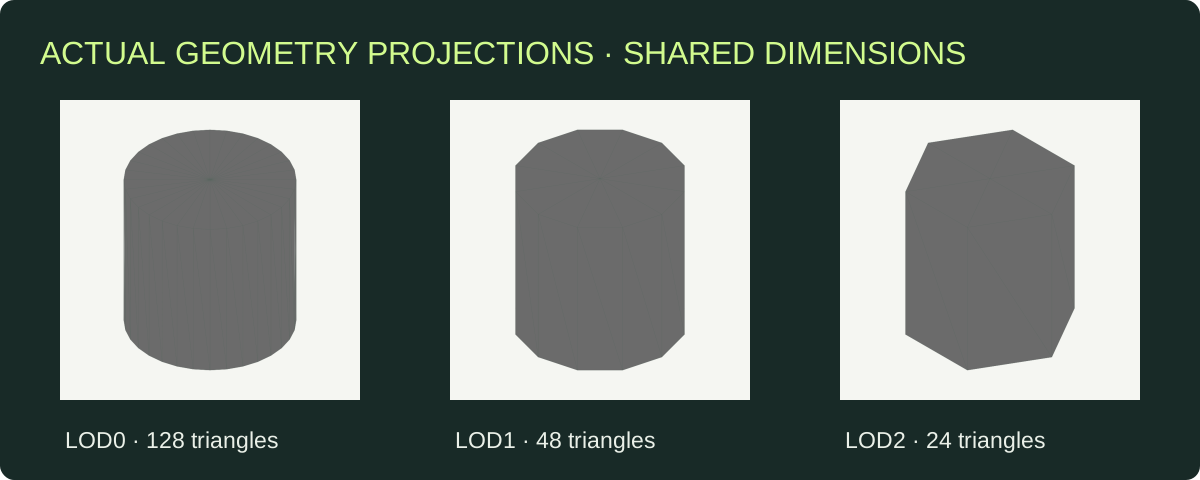
The projections come from the supplied meshes. Reducing radial resolution changes the outline even while dimensions stay aligned.
The count reduction is straightforward: LOD1 has 62.5% fewer triangles than LOD0; LOD2 has 81.25% fewer. Those are file-count comparisons. For an actual game asset, review the outline at the project’s camera sizes and measure the receiving scene’s performance.
Review silhouette before choosing transition settings
Display each level from the front, side and an oblique angle. Check features that identify the object: a handle, shoulder, roofline or distinctive opening. Inspect the same view at the intended on-screen size rather than approving every level from a large isolated preview.
For the cylinder study, the six-sided outline becomes more angular. Whether that is acceptable depends on where it becomes visible. For a close-view prop, it may be too obvious; for a distant decoration, a simpler representation may be suitable.
Compare material assignments and shading as well. A surface becoming much darker at a transition may be a normal/material issue rather than a missing polygon. Keep a neutral comparison view and the ordinary game-view test with the review record.
Test the LOD assignment in the receiving project
Record how the importer creates or assigns the levels. Unity’s LODGroup uses on-screen size to choose levels.[1] Review transitions through the project’s camera, including changes in viewing angle and field of view. Do not reduce this to one universal distance rule.
Look for a jump in position or size, an early loss of a key feature, a material change and unexpected disappearance. Record the affected transition and conditions. If bounds or transforms differ, correct those first. If the shape changes too much, revise the derivative or transition policy.
For Unreal’s FBX route, use its documented LOD workflow.[2] When using another route, establish its actual setup and retain the import note. Source naming alone is not a recorded receiving-project test.
Decide what the collider is meant to do
Start from gameplay. Does the object block a player, support an item, answer a trace or move under physics? List only the actions the project requires, then test them.
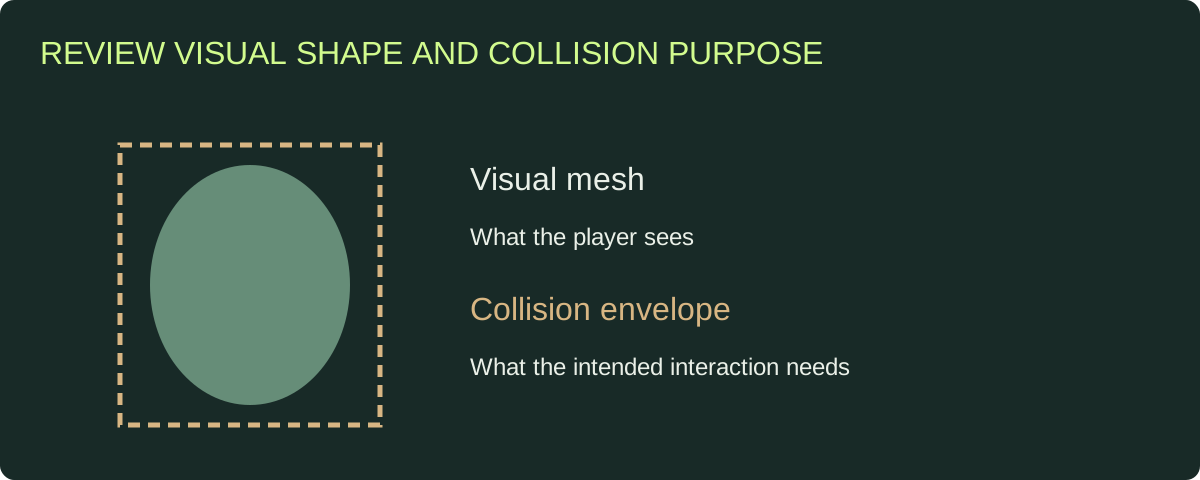
Choose a collision representation for the interaction, then test the receiving setup.
A box around the cylinder study is easy to inspect, but it also covers the corners outside the curved visual surface. That may fit a coarse blocking task or be unsuitable for close interaction. Treat this as a deliberate choice, not an automatic quality score.
For a doorway, test passage with the intended player shape. For a shelf, test the required placement. For a moving prop, use the project’s physics setup. For a trace interaction, check that the intended target responds and nearby surfaces do not intercept it unexpectedly.
Keep collision revisions connected to geometry changes
When an opening widens or a moving part is added, identify whether the collider needs a new revision. A material-only change may leave the collision review applicable; a changed boundary may not.
Keep an explicit relationship among master, LODs, collider and accepted release. If one derivative is replaced independently, record why. That lets the next developer understand which previous checks remain valid.
Close the handoff with evidence, not just file names
Use the game-ready checklist to combine source checks with the receiving review. Retain the triangle counts, marked views, transition observations, collision actions and unresolved corrections.
The Rendora game tool checks and packages supplied GLB LOD0/1/2 and a collider with the production source and report. Prepare reduction in your production application, upload the resulting files and review them against the project budget.
FAQs
Is fewer triangles always better?
Use a simpler representation when it preserves the needed appearance and helps the target workload. Inspect the result and measure the scene rather than choosing solely by count.
Should the collider match every visible detail?
Match the required interaction. Establish the receiving engine’s collision representation and test the actions the object must support.
Why does my object jump between LODs?
Compare transforms, bounds, origins and geometry alignment before changing transition settings. Then inspect the actual assigned levels in the project.
Can I reuse the collider after changing the mesh?
Review the change. If the affected geometry changes blocking or interaction boundaries, update and retest the collider.
References
[1] Unity 6000.6: LODGroup: level selection by size on screen.
[2] Epic Games: FBX Static Mesh Pipeline.
About the author
Rendora Journal covers configurable assets, production checks and traceable delivery workflows.