
In this guide
Set texel density as a relationship between texture pixels and represented world distance, then inspect the result at gameplay scale. Two assets using the same texture dimensions can have very different visible detail because their physical size and UV coverage differ.
Begin with the asset’s intended distance, screen importance and target platform. Choose a project reference and document exceptions such as hero props, small labels or hidden surfaces. A single density target is a coordination tool, not a reason to spend equal memory everywhere.
Measure a known span
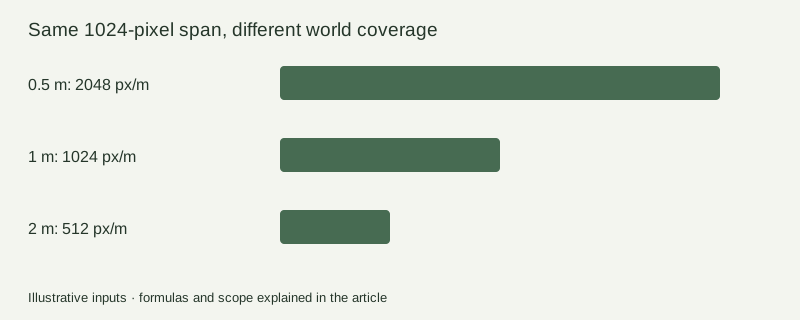
For a simple UV-aligned test span, density equals covered texture pixels divided by represented world distance. If a one-meter edge occupies half the width of a 2048-pixel texture, that span has 1024 pixels per meter. This illustrative calculation assumes the stated UV direction and coverage; complex islands need measurement using the project’s UV tools.
Doubling the object’s world size without changing its texture coverage halves the density. That is why the scale and pivot check should precede texture-resolution decisions.
| Review item | Record | Why it matters |
|---|---|---|
| Known world span | Units and measured distance | Sets the denominator |
| Texture span | Resolution and UV coverage | Sets the pixel allocation |
| Neighbor reference | Approved asset and view | Exposes visual mismatch |
| Exception | Region and reason | Prevents unexplained overspending |
Compare surfaces in context
Place neighboring assets under the same lighting and inspect at intended distance. Use a diagnostic grid where useful, then return to the real textures. Check whether weave, grain or wear has a believable scale as well as sufficient sharpness. Increasing resolution will not correct a texture pattern that represents the wrong physical size.
Do not confuse density with art direction. A stylized surface may deliberately contain broad features, while a realistic hero label needs readable fine detail. Record what must be legible and where.
Treat memory as a separate measured result
Density guides allocation; it does not directly state runtime memory. Texture format, compression, mip levels and platform import settings also matter. Unity’s memory profiling guide recommends examining actual resource use with profiling tools.1 Capture the target build and device conditions alongside the asset review.
If the target is exceeded, identify whether UV utilization, unnecessary resolution, duplicate textures or platform settings are responsible. Do not reduce every texture uniformly before checking which ones drive the budget.
Set an acceptance protocol
Choose a known reference asset and camera distance. Measure the candidate’s important spans, inspect adjacent surfaces and document any exception. Then verify runtime resource use under the intended conditions. Keep density findings and memory findings as separate rows so one cannot masquerade as the other.
Use the density review sheet and the performance budget guide. For texture packing and receiver interpretation, consult the PBR handoff checklist.
The Rendora game workflow helps retain supplied asset specifications and delivery evidence. Do not interpret file-size or texture-dimension statistics as a measured GPU-memory result.
Density questions
Should every asset use the same value?
Use a consistent baseline and deliberate exceptions tied to viewing requirements. Hidden geometry and a hero product label do not have the same information needs.
Is a larger texture always sharper?
Only if the UV allocation, source detail, sampling and receiving settings support it. Review the actual rendered result and runtime budget together.
References
- Unity, Memory profiling, checked October 26, 2026.
About this guide
Rendora publishes practical guides for teams working with configurable 3D assets and traceable production handoffs. Updated October 26, 2026.