
The texture folder contains an albedo image, a purple normal map and a packed map labeled “ORM.” The receiving material expects different inputs. The files arrived, but the surface looks wet, metallic or unusually flat.
A reliable PBR handoff identifies each texture’s role, channel layout, color interpretation and material assignment. Record the source convention and the receiving shader mapping before repacking images or changing artistic values.
Download the PBR mapping register and fill it in using the actual files. This guide focuses on metallic-roughness handoffs and the questions that prevent ambiguous material delivery.
Name the role before choosing the input
| Texture role | What the receiving team needs to know | Review question |
|---|---|---|
| Base color | Color image, alpha meaning and reference | Is the expected surface color represented? |
| Normal | Space/convention and import interpretation | Does the surface detail face the intended direction? |
| Roughness | Source channel and receiving input convention | Is the intended highlight spread preserved? |
| Metallic | Source channel and material use | Are intended metal and nonmetal areas interpreted correctly? |
| Occlusion | Source channel and intended use | Is it mapped through the chosen shader route? |
| Opacity/emission | Meaning, material mode and destination | Does the intended effect survive import? |
Keep texture names readable, but do not rely on a suffix as the only specification. A map labeled mask needs an accompanying channel definition. If one image serves several roles, record each role separately.
Understand the packed map you actually received
In metallic-roughness glTF, green stores roughness and blue stores metallic.[1] Another production convention may pack channels differently. Read the export convention and receiving material requirements before connecting the file.
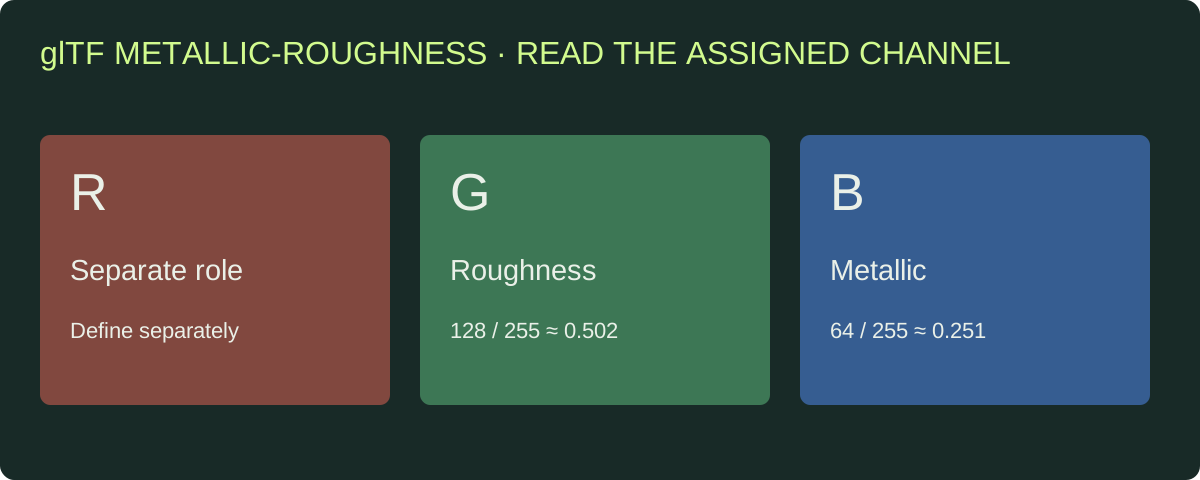
Identify the source channel and receiving input explicitly. The image’s overall tint is not its material meaning.
The downloadable channel sample is an authored 8-bit RGB image with R=255, G=128 and B=64. Its pixel record preserves the decoded values. It is a simple way to inspect channel extraction: green corresponds to approximately 0.502 and blue to approximately 0.251 when divided by 255.

If you connect the entire RGB image to a color input, you see its combined color. If you read its green channel as scalar data, you read a different kind of input. Keep that distinction clear when discussing a surface with an artist.
Record color and data interpretation
Use the importer and shader’s requirements for each role. A visual color texture and a numeric material mask should not be assigned identical settings just because both are PNG files. In glTF’s metallic-roughness definition, the packed scalar values use linear interpretation.[1]
Preserve the source image and record any receiving conversion. If a shader expects smoothness while the source provides roughness, establish the required mapping rather than compensating by changing the base color or lighting. Keep the operation in the import note so a later update can reproduce it.
For normal maps, record the source convention and the receiving route. Review a known raised or recessed detail under a controlled light. Change channel orientation only when that comparison identifies a convention mismatch; avoid making a global adjustment based on an unrelated tutorial.
Connect the correct map to the correct material
List material slots and the parts they belong to. A clean texture package still looks wrong if the body receives the trim material or an option changes every part at once.
For an illustrative painted prop, separate the body surface, exposed metal and label if the production task requires independent assignments. Keep the same material identities across the required LODs. When a lower level changes the material layout, document how the receiver should map it.
The missing-texture troubleshooting guide provides a symptom-first route for gray models and incorrect surfaces. Use the source and material record before asking the artist to repaint an image that is simply assigned incorrectly.
Build a repeatable material review
Choose one representative surface and an approved reference. Keep the camera, lighting and receiving shader route fixed while evaluating a correction. Look at the whole object, then inspect the detail that motivated the review.
| Observation | Check before requesting new art |
|---|---|
| Painted area behaves like metal | Metallic channel and material assignment |
| Surface looks too glossy | Roughness/smoothness mapping and values |
| Detail looks inverted | Normal-map interpretation and source convention |
| Color differs across imports | Color interpretation, shader and lighting setup |
| LOD changes appearance | Map roles and material assignment across levels |
Record one change at a time. If the artist adjusts the texture and the developer changes the shader simultaneously, preserve both revisions and compare them independently before accepting the result.
Specify dimensions, dependencies and delivery files
Request actual image dimensions for each map, file format and source revision. Keep the images needed by the runtime route and any higher-quality sources included in the agreement. Record alpha use and required dependencies.
Texture dimensions affect the potential memory footprint, but the downloaded image size is a different measurement. Compression, mip levels and runtime format belong in the receiving review. Use the asset budget worksheet to keep transport files and runtime assumptions separate.
For a material update, identify which assets and derivatives use the changed map. Recheck those relationships instead of replacing similarly named files across the whole library.
Prepare the Rendora handoff
The game tool accepts supplied base-color, normal and metallic-roughness maps with the GLB production source. Record the map roles and verify material-slot evidence before building the delivery. Keep the receiving shader mapping in the import note and finish the asset acceptance checklist.
For engine-specific conversions, follow the actual import route. Epic’s glTF material documentation describes its metallic/roughness channel handling.[2] Use the source convention as a reference, then verify the destination material rather than treating a file name as a complete setup.
FAQs
What does a packed PBR map contain?
It stores several scalar roles in different image channels. Request the channel layout and connect each role to the receiving shader’s expected input.
Does every PBR workflow use the same channels?
No. Confirm the actual format/export convention and the destination shader mapping. Keep that definition in the delivery register.
Can I judge a roughness map from the colored preview?
Inspect the assigned scalar channel and the material result. A combined RGB preview mixes several roles and can be misleading for that decision.
Should a normal map be reviewed only at high zoom?
Review the ordinary game view and the important detail. Confirm the material supports the intended appearance at the distances the player will see.
References
[1] glTF 2.0 specification: metallic-roughness texture channels and linear scalar values.
[2] Epic Games: How the glTF Exporter Handles Unreal Engine Content.
About the author
Rendora Journal covers configurable assets, production checks and traceable delivery workflows.