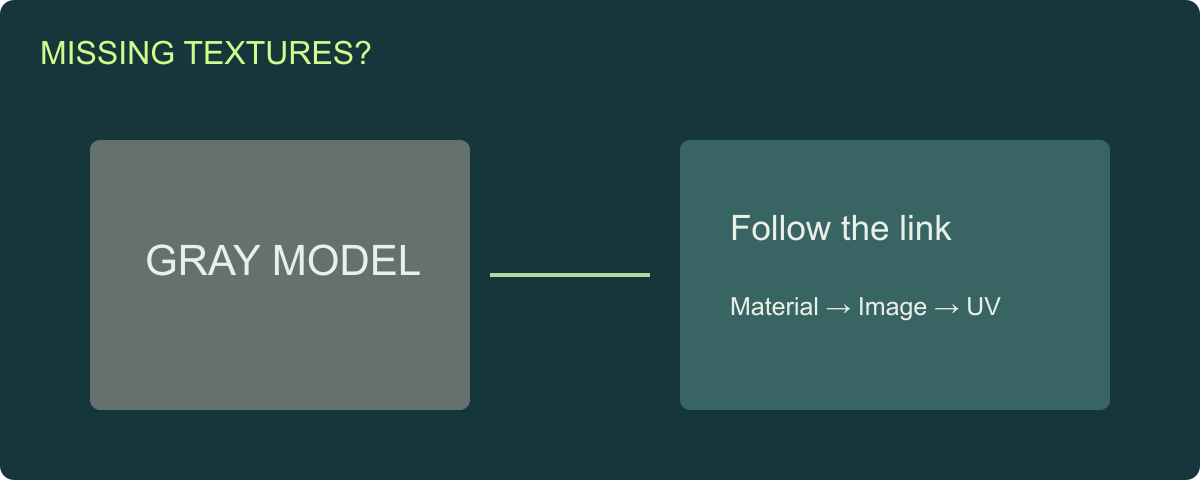
The model looked textured in the supplier’s preview. In your project it is gray, a logo appears on the wrong panel, or one surface is bright pink. Re-exporting everything is tempting, but first identify which connection broke.
Trace a missing texture from the receiving material back to its source file: shader support, material assignment, texture reference, UV set and import settings. Keep a working copy and change one connection at a time. The visible symptom helps decide where to start.
This guide is for a supplied game asset arriving through a recorded importer route. Use it with the material troubleshooting worksheet, especially when the artist and receiving developer use different applications.
Identify the symptom before changing the export
| What you see | First question | Next inspection |
|---|---|---|
| Entire model is gray | Does the receiving material reference the supplied textures? | Material assignment, texture paths and importer output |
| One part has the wrong surface | Is that primitive using the intended material slot? | Slot-to-part mapping |
| A map is present but stretched | Is it reading the intended UV set and mapping? | UV data, scale and tiling |
| Surface becomes unusually shiny | Is roughness or smoothness being interpreted correctly? | Channel mapping and shader inputs |
| Pink/error material | Is the shader supported by the receiving render pipeline? | Shader/import log before texture replacement |
| Editor works; packaged build fails | Are dependencies available through the build’s loading route? | Build logs, paths and imported resources |
These are starting points for diagnosis. A gray model can have several causes, so record the specific broken reference rather than applying the same repair to every symptom. Unity documents magenta as its default error shader, including render-pipeline mismatch cases.[3]
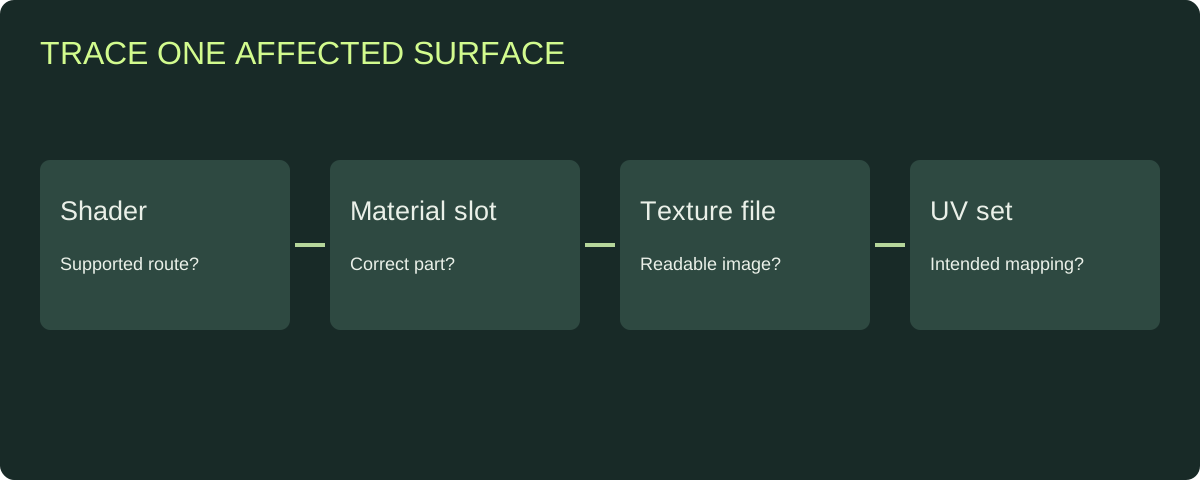
Follow one affected surface through the chain instead of changing every import setting at once.
Confirm the receiving route and source revision
Write down the engine version, render pipeline, importer name/version and exact source file. For FBX in Unity, inspect the material-import settings that belong to the model. Unity’s Materials tab documents material creation and remapping options.[1] For GLB, use the settings and logs of the installed glTF importer rather than applying FBX instructions to a different route.
Keep the original package intact. Work on a copy and compare its contents with the supplier’s inventory. If someone copied only the mesh from a larger folder, request the complete package before investigating shader details.
For a runtime-loaded asset, distinguish the source path used by the editor from the URL or resource path used by the build. A file available on the artist’s workstation is not automatically included in your release. Capture the failing request or log entry when reporting the problem.
Check whether the image actually arrived
Open each supplied texture independently. Confirm its file name, dimensions and intended role. A missing image, an unreadable image and an image attached to the wrong input require different corrections.
Use the PBR handoff guide to establish map roles. Start with a simple inventory:
| Part | Material | Texture role | Source image | Receiving input |
|---|---|---|---|---|
| Body | Painted metal | Base color | Record actual file | Record shader input |
| Body | Painted metal | Normal | Record actual file | Record normal input |
| Body | Painted metal | Roughness/metallic | Record actual file/channels | Record channel mapping |
| Label | Decal or separate material | Color/opacity | Record actual file | Record material setup |
If two materials both refer to texture.png in different folders, keep their full identities in the inventory. Renaming or flattening directories can silently replace one map with another. Restore the intended references and retest one surface before cleaning up file names.
Inspect material slots before repainting textures
Select the affected part and identify its assigned material. Compare the slot name and primitive assignment with the source inventory. If the lid uses the frame material, the image files may be perfectly usable; the assignment needs repair.
A practical planning example is a crate with a painted body and a paper label. If the label image appears across the body, first check which primitive owns that material. If the label stays on its panel but stretches, continue to UV inspection. This sequence narrows the repair from “retexture the crate” to a specific source relationship.
Request a corrected source revision when the assignment is authored incorrectly. If the receiving project intentionally overrides materials, preserve the override mapping so the next reimport does not undo the fix.
Check UV presence and then texture alignment
The glTF specification connects textured materials to texture-coordinate data.[2] Inspect whether the required set can be read, then check that the intended image aligns with the surface. Presence and usable layout are separate review steps.
Our GLB validation experiment includes the same cube with and without primary UVs. The files retain the same geometry, while the UV inspection changes. Use those downloadable fixtures to understand the report; use your textured source to investigate the actual mapping problem.
For a stretched logo, compare the export’s UV set, material mapping and source layout. For a mirrored detail, establish whether mirroring is intentional. For seams, inspect the affected islands and the image’s edge treatment. Send a marked view of the specific surface to the source artist.
Resolve channel and color interpretation
When an image is connected but the surface looks wrong, review its role. Base color is visual color data; roughness and metallic values are material data. A normal map has its own import interpretation. Match the receiving shader and importer requirements rather than assigning every image the same settings.
For a metallic-roughness glTF material, roughness occupies green and metallic occupies blue in the combined map.[2] Connecting that image as if every channel described color changes the result. The channel mapping worksheet helps record the conversion into the project’s shader convention.
Test one confirmed material under ordinary project lighting. If you change the lighting, exposure, textures and shader simultaneously, it becomes difficult to tell which correction solved the source problem.
Send a repair request another person can reproduce
Attach the source revision, affected part/material, expected appearance and observed problem. Include the importer and render-pipeline details. For a missing dependency, identify the file or failing path. For a slot error, identify the primitive and expected material.
Use a before/after record with three decisions: does the image load, is it mapped to the intended surface, and does its appearance match the approved reference? Record the replacement revision and reopen it from the delivered package.
Once the sample works, repeat the check across the affected asset set. A shared export preset can create the same problem in many files. Keep the correction scope explicit so an untouched asset is not silently marked reviewed.
Where Rendora helps
The game asset tool inspects GLB evidence such as UV attributes and material slots and organizes supplied PBR maps with the handoff. Use that report to identify the source data you have, then apply the repair in the source or receiving material setup. Finish with the delivery checklist so the accepted package includes the corrected dependencies.
FAQs
Why is my model gray even though the textures are in the folder?
Check whether the receiving material references those files and whether it is assigned to the affected part. Folder presence alone does not establish either connection.
Should I embed textures or send them separately?
Use the receiving workflow’s agreed packaging route. Verify the delivered copy from a clean location and retain a readable inventory of the texture roles either way.
Can a UV check repair a stretched texture?
A check helps locate missing or unreadable data. Correct the mapping in the source or material setup, export a new revision and inspect the textured result.
What should I test after fixing one map?
Reopen the corrected package, check all surfaces sharing that material and verify the intended editor or build loading route.
References
[2] glTF 2.0 specification: texture coordinates and metallic-roughness material data.
[3] Unity 6000.3: Error and loading shaders.
About the author
Rendora Journal covers configurable assets, production checks and traceable delivery workflows.