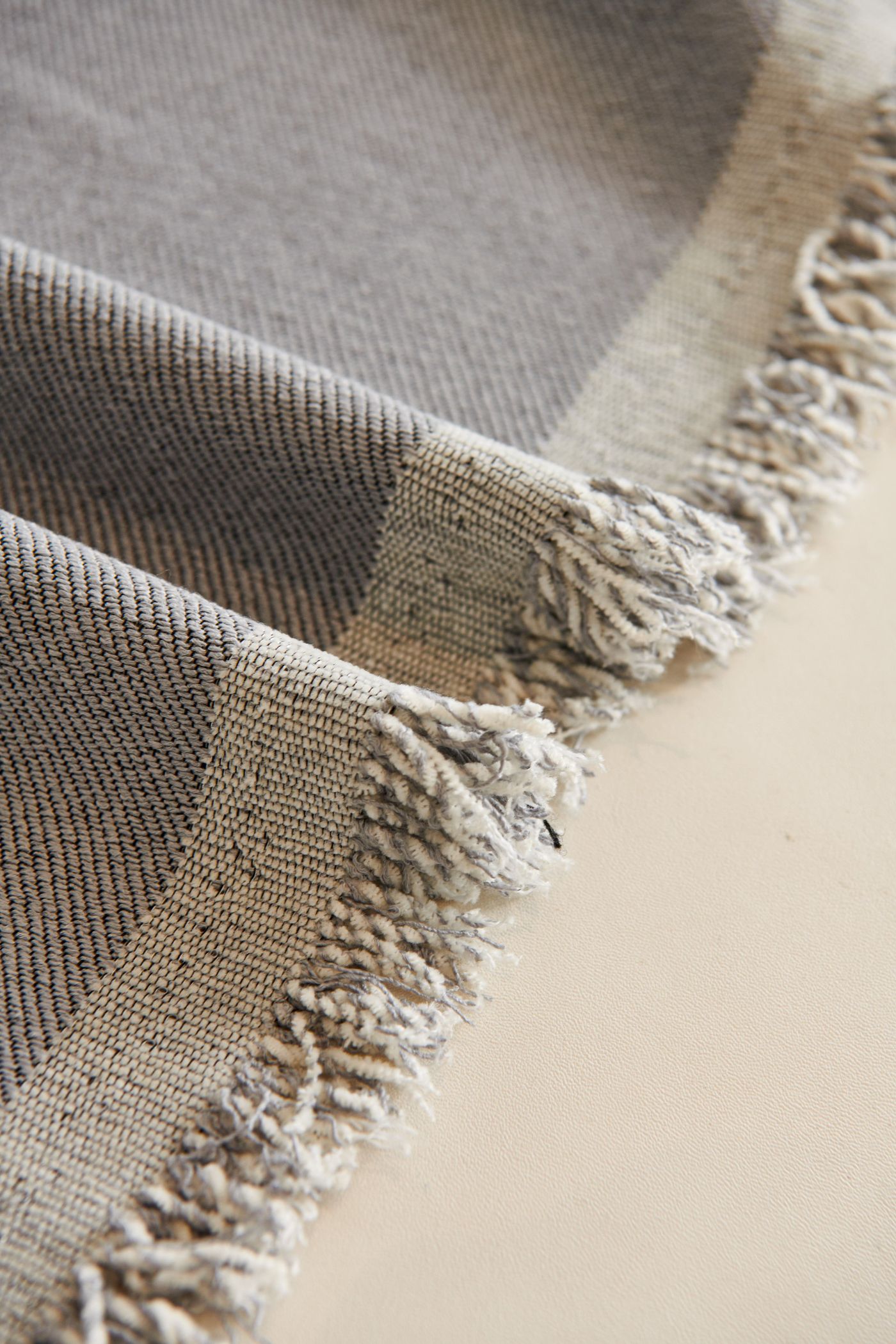
A customer clicks oak, then walnut. The wood changes—but the chair also appears wider and the seat moves higher in the frame. Is that a different product, or just inconsistent photography? A variant gallery should not make the shopper solve that puzzle.
Keep the approved product, camera and lighting fixed; change only the component or finish that corresponds to a real catalog option. Then map each approved image to the correct SKU. A convenient recolor is not enough if it changes seams, reflections or a part that should remain unchanged.
The difficult part of variant imagery is rarely exporting another file. It is preventing small production differences from becoming misleading product differences. A chair should not appear taller in oak than walnut merely because the images were framed differently.
Separate color, material, component and view
Start with four labels rather than one vague “variant” field.
| Change | What it means | What may need new evidence |
|---|---|---|
| Color | Another approved color of the same finish | Color reference or physical swatch |
| Material | A different surface or construction | Texture, reflectivity, seams and thickness |
| Component | A different leg, arm or other part | Geometry and allowed combinations |
| Camera view | Another angle of the same item | Photo or render from that angle |
A navy leather seat is not necessarily a recolored navy fabric seat. A change in material can change highlights and construction. Treating those as a single hue slider makes production quick but product representation unreliable.
Build a small register of sellable combinations
Ask the catalog owner which combinations can actually be ordered. Do not generate all theoretical permutations simply because the software can list them.
In this fictional planning example, three seat finishes and two leg finishes produce six theoretical combinations. The supplier confirms five; blue upholstery with walnut legs is not sold. The invalid combination should have neither a published picture nor an orderable SKU.
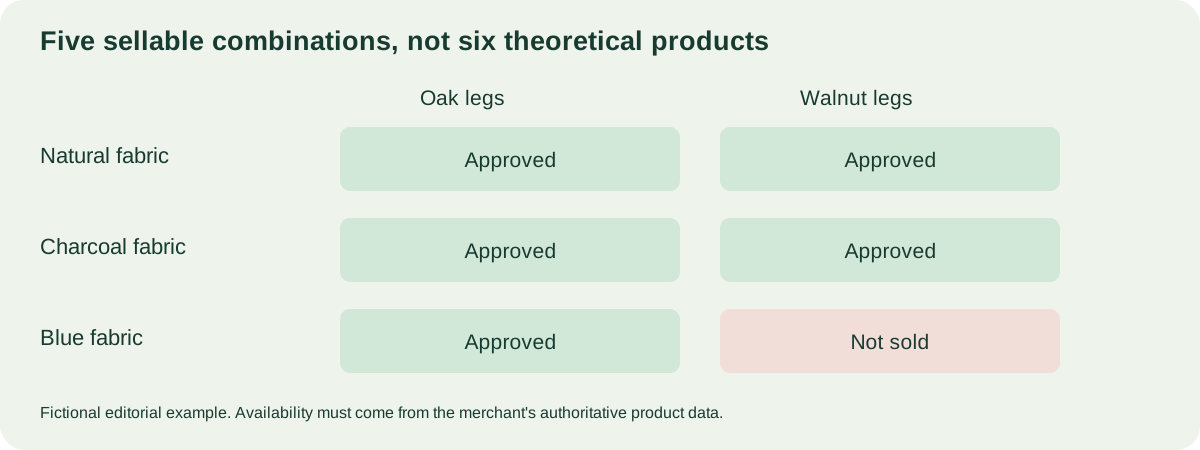
In this example, the blue/walnut combination is not sold. Produce and publish only the approved combinations.
Download the variant media register. Record the approved option names, SKU, source revision, expected images and approval owner. If inventory changes daily, do not treat this editorial register as live stock. Availability and orderability must come from the merchant’s authoritative systems.
Choose the production method that preserves the product
Approved photographs are a sound starting point when you already have one picture per sold variant. Standardize crop and output without pretending to create missing colors.
Layered image composition can work when option layers share exactly the same view, canvas and placement. The layer should include the actual approved component appearance. A seat layer photographed from a different angle cannot be made correct merely by resizing it to the same pixel dimensions.
3D rendering allows controlled camera and material changes when an accurate model is available. It still needs finish references and review. See the model-to-image guide.
AI-assisted editing can help prepare candidates, but compare every output with the product. Do not accept changes to logos, stitching, ports or proportions because the overall image looks attractive. Reject unapproved details or return to the source.
Lock the comparison conditions
Use one approved image as the framing reference. Align the base plane, margins and camera direction. Keep the lighting setup stable enough that customers compare the finish rather than different exposures.
For each new variant, compare unchanged components with the reference. If the legs, silhouette or seams moved unexpectedly, inspect the source and processing before accepting the file. For materials with grain or weave, check direction and repeat size as well as color.
Approve the finish name alongside the picture. “Natural oak” and “warm oak” may look similar on screen but refer to different merchandise. Use the merchant’s material identifier to avoid settling disagreements by whichever thumbnail looks nicest.
A new finish should arrive with a material brief
A request such as “add green” is incomplete. Ask for the exact material name, supplier identifier, finish family, component coverage and an approved reference. Confirm whether it is new stock, made to order or a proposed design that must not be sold yet.
Cylindo’s material guide likewise treats application rules as part of material data.[1] For your brief, that means stating which surfaces receive a finish, not merely attaching a swatch.
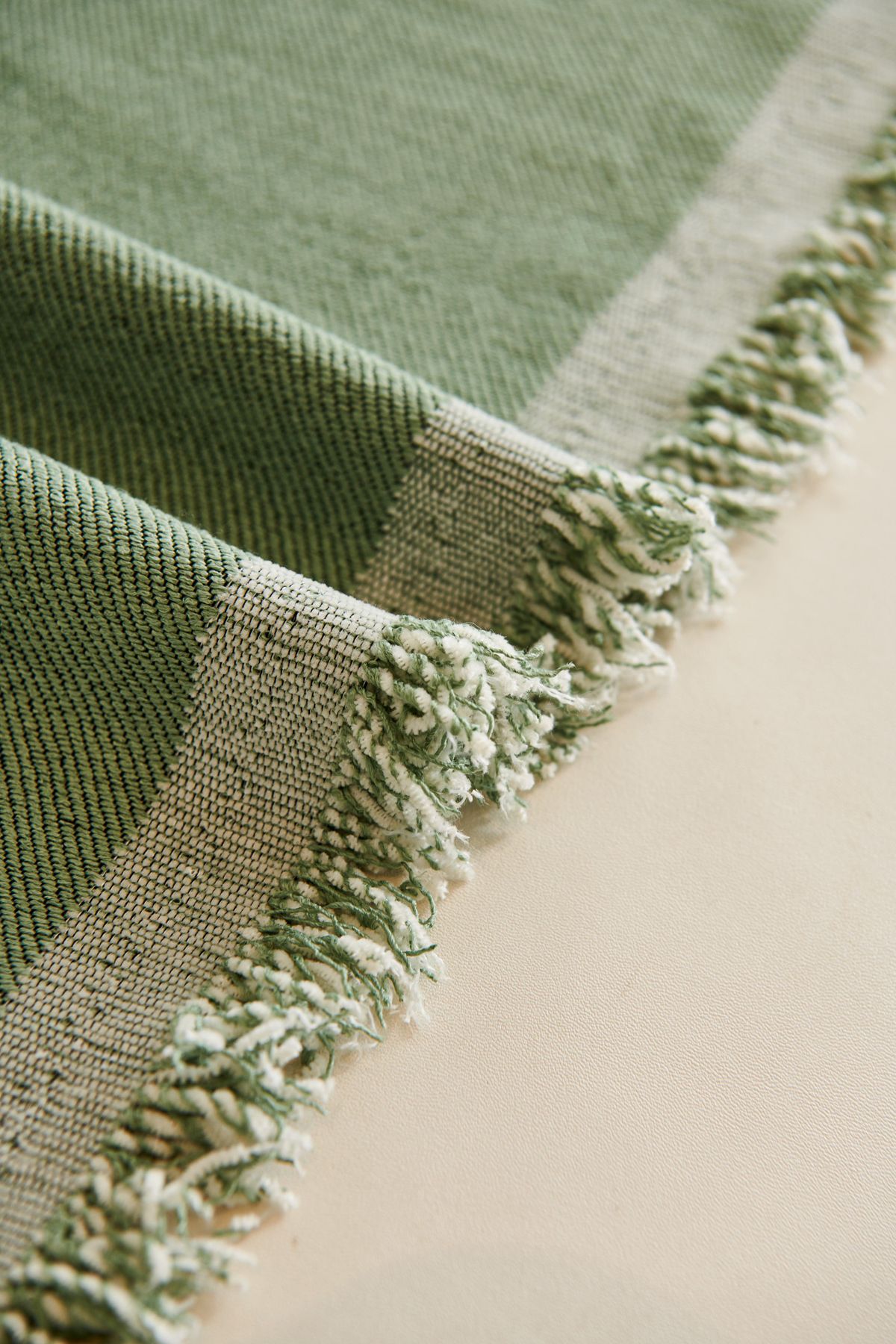
A finish can differ in weave, sheen and edge treatment even when its color is similar.
For a chair, write “apply this material to the seat and back upholstery; retain the approved black frame.” If stitching changes with the new fabric, record that as part of the product rather than allowing a simple recolor to conceal it. If the fabric has a directional pattern, specify which way it runs across each piece.
Give the reviewer the reference and the configuration together. A named approval makes the resulting picture traceable; a message saying “the green one looks fine” does not identify which material or file was accepted.
Review a variant as a change, not as a new unrelated image
Use the previous approved picture as the baseline. Ask two questions: did the intended finish change, and did anything else change unintentionally? This is particularly useful when someone has edited the picture rather than rerendered a controlled source.
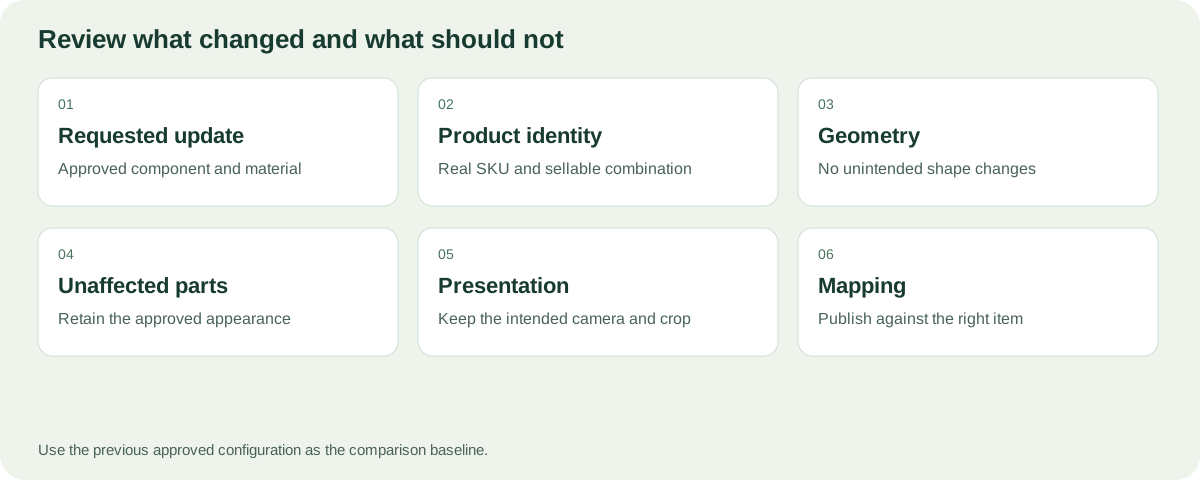
| Change request | Must change | Must remain consistent |
|---|---|---|
| New seat color | Approved upholstery appearance | Frame, leg shape, camera and crop |
| New leg material | Specified leg surfaces | Seat finish and approved dimensions |
| New back panel | Actual panel geometry and related detail | Unaffected components and named material references |
| New image angle | Camera observation | Product configuration and SKU identity |
If the output changes the silhouette, ask why. It may be a legitimate construction difference, but it should have evidence and the right product identifier. The goal is not to force different merchandise to look identical; it is to keep presentation changes from masquerading as product changes.
If the right image is assigned to the wrong item
Suppose a walnut image was uploaded against an oak SKU. First identify every placement using the wrong file: product gallery, variant assignment, advertising export and any partner feed. Correct the mapping at its source rather than making isolated manual replacements with no record.
Keep the corrected file distinct from the mistaken release. Recheck the actual storefront selection, and tell anyone maintaining downstream placements which identifier and file changed. If the physical product is correct and only the mapping was wrong, there is no reason to recolor or rebuild the entire source model.
Finish the correction with a repeatable prevention check: a second person can compare the material identifier, file and selected SKU for the affected family. That targeted check is more useful than making every future image pass through an unexplained extra approval layer.
Match each approved image to the catalog
A technically excellent picture can still be the wrong picture. Pick a small selection of SKUs, including visually similar finishes and one unavailable combination. For each, compare the catalog record, image and storefront selection.
| Test | Accept when | Return when |
|---|---|---|
| Selected SKU | Image matches all visible options | Label says walnut; image shows oak |
| Unchanged component | Same geometry and approved appearance | A recolor changes the leg or logo |
| Repeated view | Framing is intentionally consistent | Product jumps in size across swatches |
| Unsupported combination | Not shown as an available product | A theoretical combination gets published |
| Download | Filename and register agree | Final files are swapped or ambiguously named |
On Shopify, native variant assignment and gallery filtering are different tasks. Use the assignment and troubleshooting guide instead of assuming that correctly named files will automatically create the desired gallery.
Carry the approved baseline into the next update
When one fabric changes, identify which approved configurations use it. Rebuild and recheck those outputs rather than discarding the whole catalog. Keep previous approved images until the replacement has passed review, and record the release that became live.
If the product geometry changes, the affected set may be larger. A redesigned armrest can invalidate photographs and renders across several finishes. The dependency is the changed source, not the date the file was exported.
This also helps with disputes: the team can establish whether an image showed an old finish, used an old model, or was simply mapped to the wrong SKU.
Run a two-finish review before a whole catalog
Choose two real finishes of one product and one required view. Gather their surface references, the current product revision and the sellable configurations. Request both outputs under the same camera and lighting recipe. This is a protocol to run with your supplier, not a completed customer experiment.
Compare the silhouettes and placement first, the changed surface second and unchanged components last. A new walnut leg material should not change the upholstery seam. Record the discrepancy against the specific output and reference rather than approving “the darker one” in a chat.
Use three outcomes: accepted, correction requested or awaiting evidence. An absent swatch is missing evidence, not proof of a failed render. After a correction, repeat the same comparison and retain the revised file. A reviewer should be able to identify the source, intended change and final decision without reconstructing the conversation.
Where an image package helps
The Rendora ecommerce tool can build image packages from approved product photos or supplied, aligned option layers. Its single-SKU photo path does not invent other colors. The layered path requires matching visuals for the selected options and produces images plus SKU mapping information.
Those checks do not physically authenticate a fabric or connect the package to live stock. Merchant review remains necessary. Use the release checklist before uploading the files.
FAQs
Can I recolor one photograph into every catalog finish?
Use any recolored output as a candidate until compared with the real finish. Hue changes cannot establish material texture, reflectivity or construction.
Do I need a separate picture for every size?
That depends on whether the size changes visible proportions and what the channel needs. Do not label the same shape as an accurate representation of a differently proportioned product.
Should every possible combination have an image?
Only produce and publish the combinations needed for real approved products and use cases. Do not create unsupported products just to fill a matrix.
Who approves the final color?
Assign a merchant or product owner with access to the approved finish reference. The image-production team should not redefine catalog colors independently.
Sources and notes
[1] Cylindo: Material Data Guide.
[2] Shopify: Variants. Platform terminology; not evidence that a generic image register automatically synchronizes to a store.
About this guide
Rendora publishes practical guides to product configuration and asset delivery. This guide draws on the linked documentation and editorial analysis. Worked examples and review protocols are identified in the text.