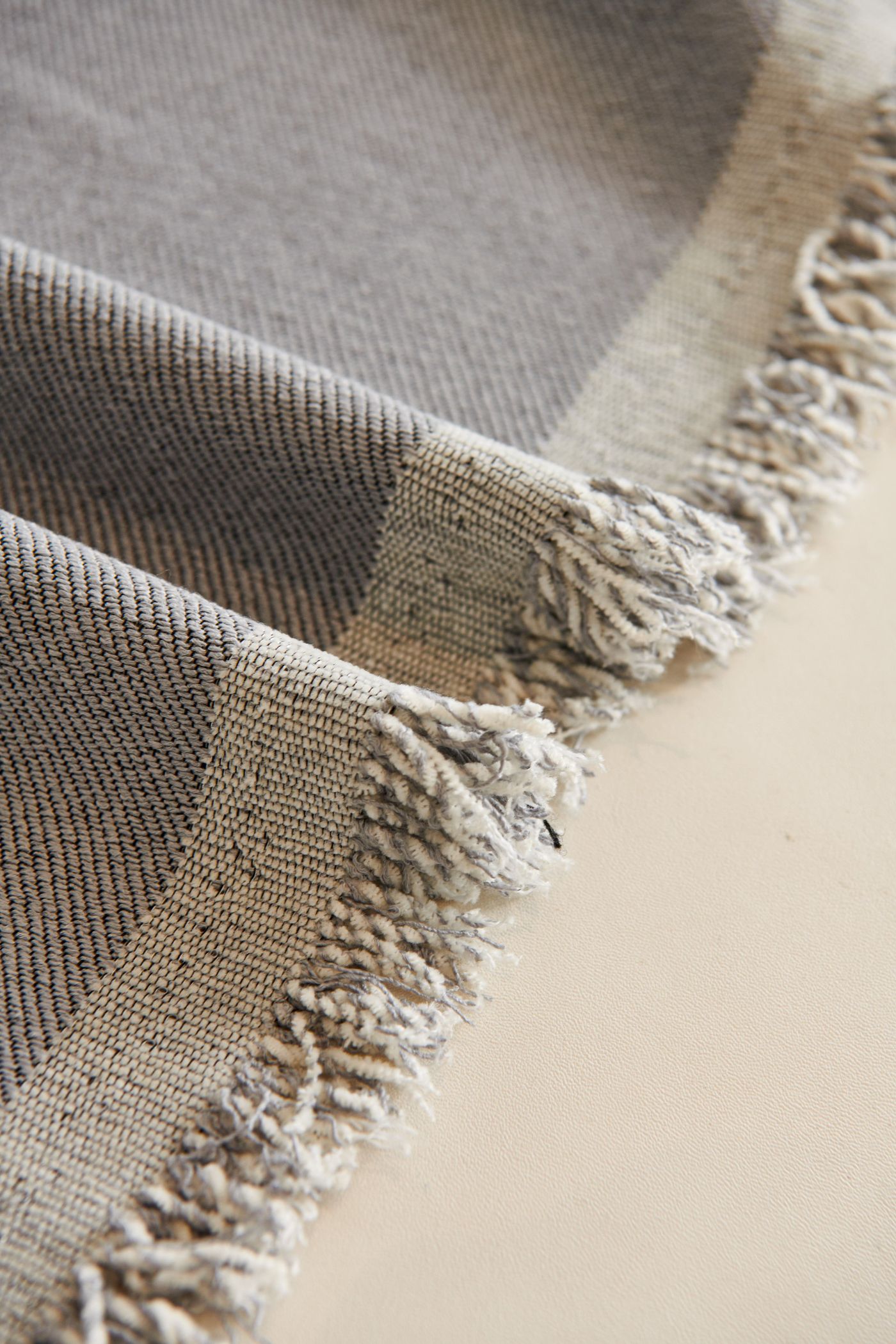
A supplier replaces a fabric. The product team approves the new sample, the main image is updated, and the launch looks complete. A week later, an old close-up is still in the gallery and a dealer is advertising the discontinued finish.
Treat a product-image update as a change to a set of dependent files and placements, not as a single replacement upload. Identify what changed, find the images that depend on it, create and approve replacements, then verify the places where customers see them.
You can start with a spreadsheet and a recoverable folder of approved releases. A larger catalog may need dedicated asset management, but neither approach works without a clear link between a product revision, its images and their destinations.
First decide what actually changed
“Update the walnut images” could mean a renamed finish, a new physical material or a wrong file attached to the correct SKU. Each needs a different response. Ask the product owner to identify the change before commissioning new pictures.
| Change | Likely work | What not to assume |
|---|---|---|
| Display name only | Update labels and mapping where used | That new photography is required |
| New upholstery color | Prepare the approved finish and affected views | That a hue shift proves the real fabric |
| Different weave or sheen | Recheck material detail and appearance across views | That the old close-up is still representative |
| New leg or arm geometry | Review configurations using that component | That one corrected hero image fixes the gallery |
| Wrong SKU association | Correct mapping and downstream assignments | That the source model needs rebuilding |
| Discontinued option | Resolve active placements and orderability | That deleting one image removes the option everywhere |
If the current and old product remain on sale, keep both identities clear. The merchant’s catalog process determines whether a new SKU is required; do not invent one solely to organize an image folder.
Build a small impact map
Start from the changed source and trace outward: component or material, configurations, image roles, delivery files and placements. A material can affect several models; a model can affect several finishes. Avoid guessing the affected set from whichever filenames happen to contain “walnut.”
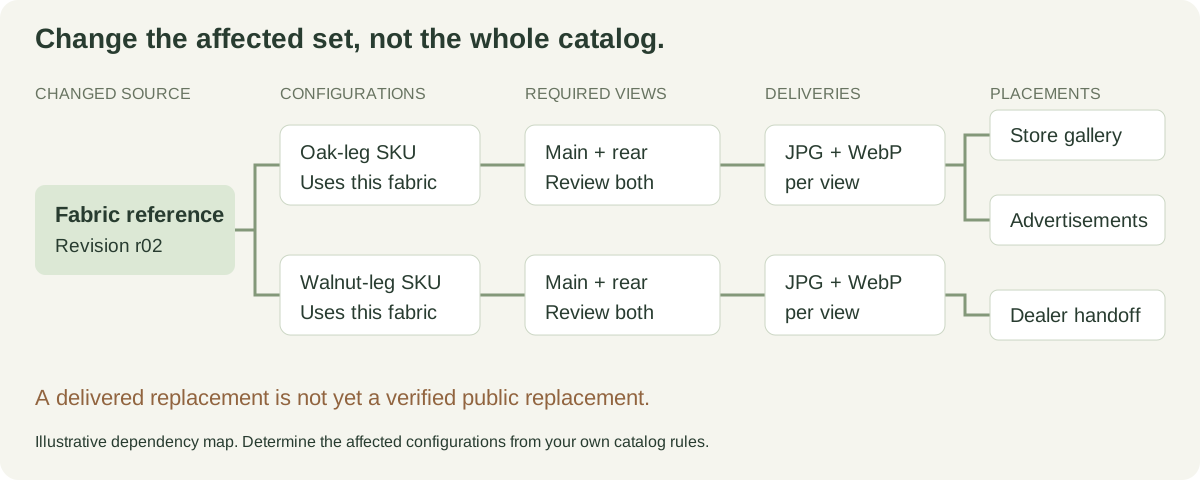
An unchanged camera does not make an old material accurate. An unchanged material does not make an old shape accurate.
In a planning example, a chair range has three upholstery options and two leg finishes. If one fabric changes, first identify the valid configurations using it. If two such configurations each need a main and rear view, four views enter the review scope. A detail image shared across both configurations may need only one replacement with two associations. These counts depend on your catalog; they are not a reason to create every theoretical combination.
Download the image update and placement register. Record the old source, replacement source, affected image, destination, owner and verification state. A placement can be a product gallery, a variant assignment, a feed, an advertisement or a partner’s accepted handoff.
Preserve a baseline before making replacements
Keep the last accepted image set and its mapping. Record the product revision and the date or release in which it became active. Store a recoverable copy rather than relying on a thumbnail in a message thread.
For a normal appearance update, the previous approved set gives you a useful visual baseline. If that previous image is already inaccurate for the product being sold, however, do not leave it live merely because it is the last approved file. The merchant should decide whether to pause the affected placement or use another accurate image until a replacement is ready.
Do not silently overwrite the editable master, either. A supplier should be able to explain which material, part or camera changed and which existing outputs depend on it. Cylindo’s product-data guide describes assessing late product-data changes against project scope; that is a useful reminder to distinguish a correction from a new production request.[1]
Brief the update as a controlled difference
Send the production team the accepted baseline, new product evidence, affected configurations and required output views. State what must remain fixed. A new seat fabric should not become a new leg shape or a different camera crop unless the brief includes those changes.
Ask for one representative corrected view before generating the whole replacement set. Compare the intended change first, then unchanged surfaces and silhouette. For patterned materials, inspect direction and repeat scale; for structural changes, check the relevant rear or side view as well as the hero.
| Review question | Evidence to retain |
|---|---|
| Is the requested change present? | New material or construction reference beside the output |
| Did anything else change? | Comparison with the accepted baseline |
| Which item does this represent? | SKU or configuration and source revision |
| Is the correction complete? | Review finding, revised file and decision |
| Can the final file be used? | Download inspection and intended placement check |
For the visual checks, use the variant image guide. Keep the full release checklist for final acceptance, rather than turning every update request into a new approval system.
Replace the records and placements together
Once accepted, add the replacement file and update its associations. Keep the SKU image register aligned with any renamed files. A JPG and a WebP of one view may both require replacement even though only one creative change was made.
Work through destinations with named owners. The store team may manage the gallery, the marketing team the advertisements and another person the dealer feed. Sending everyone a new ZIP is a handoff, not proof that each destination has changed.
If your platform caches media or creates resized derivatives, verify the customer-facing result after replacement. The exact behavior depends on the platform; do not assume that refreshing the production tool refreshes every public copy. Use the supported media replacement or publication process rather than randomly changing public URLs to work around an unexplained cache issue.
On Shopify, native variant assignment and the gallery’s behavior remain separate checks. If the selected finish shows the old picture, follow the variant-image diagnostic path before exporting the same file again.
Verify the change where the customer encounters it
Start with the exact SKU and view that triggered the update. Check the initial page, the relevant option switch, the detail view and the cart information where applicable. Repeat the known failing path on a phone as well as a desktop.
For a dealer or marketplace, record whether the replacement was sent, acknowledged or observed live. Those are different states. If you cannot inspect the destination yourself, retain the recipient’s confirmation and state the remaining limitation. A failed placement should remain open with an owner, not disappear into a generic “release complete” status.
Record the final live file or destination reference, verification date and reviewer. That small history helps when somebody later asks which fabric image was visible when a customer placed an order. It is not a substitute for the merchant’s order records, and it should not collect unnecessary customer data.
Test the process before a catalog-wide change
Choose one family with two similar finishes and a shared detail. Run a rehearsal: identify the affected set, prepare the update brief, review a replacement and check the destination associations. Use the blank register to record what happened. This is a practical protocol, not a claim that a merchant trial has already succeeded.
If the team cannot identify where an image is used, fix the register before changing the whole range. If the files are clear but the release stalls at a dealer, improve the handoff and confirmation step. Those problems need different remedies.
Where Rendora fits
The Rendora ecommerce workflow can package supported approved photographs or aligned option layers into images with SKU mapping. Its configuration identity and source records help distinguish inputs and outputs, but a downloaded package does not automatically update your store, advertisements or partner feeds.
Use the tool for the supported production handoff, then complete the destination checks in this guide. Confirm how a source revision is created in the current interface; do not assume a new upload silently replaces an approved source. Keep the accepted package and the merchant’s actual release record together.
Questions about replacements
Must every image be remade when one finish changes?
No. Identify which configurations and views depend on the changed source. Recheck shared details and alternative encodings, but do not discard unrelated accepted work without a reason.
Can the same SKU keep a new image?
That depends on whether the merchandise remains the same under the merchant’s catalog rules. File organization should not decide product identity. Record the source revision in either case.
When should an update be called complete?
When the required replacements have passed review and the agreed destinations have been verified or explicitly recorded as awaiting confirmation. Exporting the files is only one stage.
Reference
[1] Cylindo: Product Data Guide, including its guidance on changed or incorrect product data.
About this guide
Rendora publishes practical guides to product configuration and asset delivery. This guide draws on the linked documentation and editorial analysis. Worked examples and review protocols are identified in the text.